Showing posts with label CRM for Tablet. Show all posts

Thursday, 30 October 2014

Change Default View and Access Other Views in CRM for Tablet or Windows 8

If you notice in CRM 2013 for tablet or for Windows 8 Apps, one entity, it seems like only has default view to show and it seems cannot be changed (there is no selector).

There is a question what if the users want to see other views.

For example, in Case entity (I renamed to Case/Job Sheet), when you open Case entity on the CRM for Tablet, the default view is ‘My Active Cases’.

image

If you notice, there is no selector, different from CRM Web Views, that you can change the view from the selector.

image

What if I want to see other views?
For example, Active Cases, All Cases, or another custom view.

I am interested to find out more about this.
Often we have this requirement, of course My Active Cases is a great view for some users that only care about their own records, but what if I am a Manager that might be I don’t have any my own Case, but I want to see my Team’s Cases or I am GM of Service Center Company that I want to see all of the Active Cases for the whole Company Active Cases. What should I do?

How to Change the Entity View in CRM 2013 for Tablet?

Some of the users can miss this setting…

Yes, actually CRM for Tablet has a way to change the view, not from the selector.

Steps:

1. Click the ‘Right Click’ on your Mouse

2. Now, focus in the right bottom corner in the screen there is a something like Menu will come out

image

3. Click the ‘Select View’ imageand the list of the view will come to you to be selected.


image

4. Change to 'All Cases'.

Result:

image

5. Even, you can select the 'Custom View'.
For example: 'All Cases (External)'

image

Is there any other way to Access?

Yes, you can include the Views that you want into to the Dashboard.

Remember in this post:

Utilize Dashboard to Access Information (for example View) in CRM for Tablet

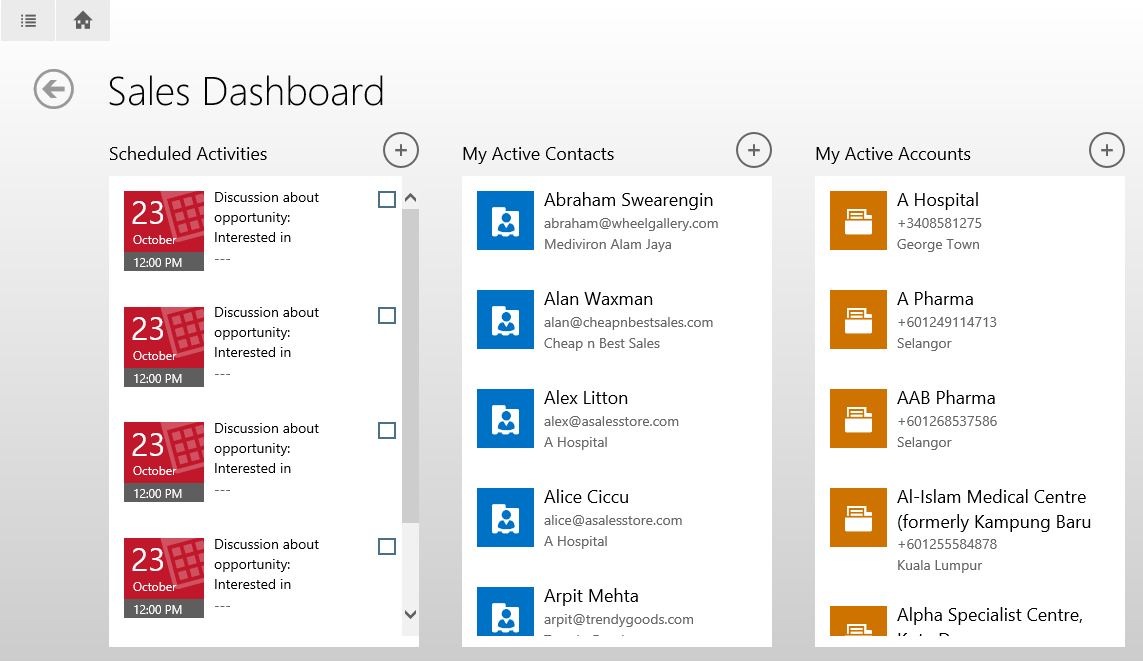
I was explaining about a Dashboard that you can customize only for CRM for Tablet: ‘Sales Dashboard’

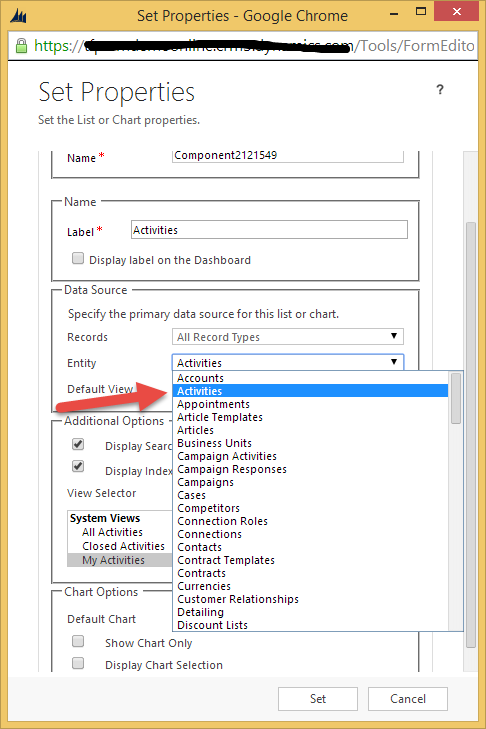
Yes, you can either rename (it has been renamed to Case Management Dashboard) it or modify it to show Lists or Charts from the entity that are enable to show in Tablet.

image

Put the Charts & Views that you want to show…

image

image

Result:

The Charts from Active Cases View…

image

And the ‘Active Cases’ View.

image

How to Modify the Default View shown in CRM for Tablet?

Have you known, you can actually change the default view that will appear in the CRM for Tablet or CRM for Windows 8 using the standard CRM View Settings:

Set the View that you want to set as Default:

image

image

Result:

image

After you open the Case entity, by default it will show the default view you set on previous steps.
That is 'Active Cases' view.

image

*You should download the metadata for getting the changes..

To know more about CRM for Tablet, I have posted another post here:


I hope it can be helpful.
Thanks!

Monday, 10 March 2014

Customize CRM 2013 for Tablet

Customize CRM 2013 for Tablet

Within the release of CRM 2013, some of the features are great UX and UI at the iPad or Windows 8 or Surfaces.


I was impressed this is very good UI.
But, please take note that they have many limitation to be customized, here I share you what can be done for customization and what cannot be done :

1. This feature only available for iPad and also Microsoft Surfaces or Windows 8 Apps, so for Android or iPhone or Blackberry, currently you might be access the CRM for Mobile Express, but cannot get this wonderful UI.

Tablet version Home :


Mobile version Home :


2. You can enable your custom entity to be accessed from Mobile through this Setting :


3. You cannot enable system entities that by default cannot be enabled, for example : Goal and Article


4. Only Javascript that be enabled, Web resources and iFrame will not be displayed.

5. You can customize Dashboard, but only one Dashboard can be shown, that called as 'Sales Dashboard'

The Sales Dashboard contains the following content by default:
  • Pinned Tiles section
  • My Activities (List)
  • My Open Opportunities (List)
  • My Open Leads (List)
  • My Active Accounts (List)
  • My Open Opportunities – Sales Pipeline (Chart)
  • My Closed Opportunities in Current Fiscal Year – Top Customers (Chart)

Well, but you can rename it, maximum columns still same, that is 6.
Here, you should modify this Sales Dashboard system Dashboard.


You can rename this name as well


After renamed :


Then, you can still do same customization like you do in the Dashboard Customization for System Dashboard.


But, please back to the rule #3 dan rule #4, if you include any Web Resources or iFrame, those will not be displayed to your Sales Dashboard on Tablet. Only list and chart with limited 6 components that will be available in this Sales Dasboard and all user will see the same Dashboard Component, the data will be displayed based on the security role.

And back to rule #3 for example, if I put the sixth column as Goal Chart, I can access from here (from preview at the customization stage and also from Web), but this Goal Chart will not be displayed to your Tablet Dashboard pertaining its status : cannot be enabled for CRM for Tablet.


Like mine, it will be only show 5 columns of Dashboard since the sixth column is dedicated for Goal Chart.

6. Customize form sames as you customize the form, but only One Form that will be displayed, so that some javascript for getting form selector like that will not be enable.

Form Features not available
There are some features available in the web application that are not available in CRM for tablets. This includes the following:
  • Yammer and Activity Feeds
  • Bing Maps integration
  • SharePoint Document Libraries
  • iFrames - typically used for including web pages in a form.
  • Web Resources
  • The ability to switch to another form when there are multiple record types per form. The CRM for tablets app always uses the first form in the form order that you have privileges to use.

7. Business Process Flow

You can also have Business Process Flow in the CRM for Tablet and also can switch process.


8. Then, make sure that the user has security role privilege to access CRM for Tablet.
"Make sure that the Use CRM for Tablets permission is checked on in your security role"
Microsoft Dynamics CRM 2013 iPad App


And finally, when will the client get any changes of customization? When there is any prompt like this,


then the user should download the metadata changes.
"Metada checked each time app is opened or when app is inactive in background and reactivated (if last check was over 24 hours)"

SUMMARY :

Customization Limitations
- Only JavaScript web resources are supported (not all function)
- iFrames will not be displayed
- 5 Tabs on a form
- 75 fields on a form will display (this is hidden fields are included)
- 10 lists on a form
- Some default entities are read only or cannot be enabled, like Goal

Extensibility
Business Logic
- Bound by client SDK
- Business Rules and client API calls flow through
- JavaScript bound to events - supported
- Web Respurces and iFrames - not supported

Command Bar
- Rendered from ribbon XML
- Permiision checks will be honored
- Enable rules will be honored
- All commands will show except specified in dispay rules

JavaScript or SDK that are not supported :


Server Side Extensibility
Plug-ins and Workflow
- CRM for tablet calls standard SDK
- CRUD requests will trigger Plugin and Workflow also

Hope it is informative :)