First of all by writing this post, I also want to celebrate the Independence Day of my Country. I would like to say Happy 69th Birthday to my Nation, Indonesia, even though, now I and you are in long-distance relationship  , but my heart is always for you!
Okay, let’s continue to my post…
I was preparing the demo for my pre-sales activity and I was thinking how to ‘integrate’ a famous messenger application to CRM. As we know that WhatsApp is one of the most reliable communication application to connect everyone by using their smartphones and only using internet or data plan.
Many Salesperson or Insurance Agent are using smartphone everyone and they might communicate with their customers anytime and anywhere, so they will use WhatsApp for a better and an easier way since WhatsApp supports image transfer as well. Customers can send their information, such as location with the image as well, for example they need a towing service when they were stuck at the road or they want to submit a claim, then they will send the image of the policy and the car appearance, including the newest condition of the broken car as well. They usually often contact the Agent, not directly call the Customer Service. Then the insurance agent can easily collect the required information that might be needed by the related department. It is so easy for them.
So, it made me to keep thinking how to convert the WhatsApp Message between Customer and the Salesperson or Agent to CRM Case.
Luckily, Microsoft Dynamics CRM 2013 SP1 and Microsoft Dynamics CRM 2013 Online with Springwave Update have the capability to Convert Email to Case. So, I have an idea to utility that feature.
And yes, I check the WhatsApp feature, and it can send the Conversation as email, so I think my idea and my research here will work, just need to finish a fine tuning.
So, first of all, I will complete the setup of an Incoming Email, I am using Email Router and I create a Queue with that email. Make sure it works first.

Then, I will create an Email to Case Creation Rule with the help of that newly created Queue.

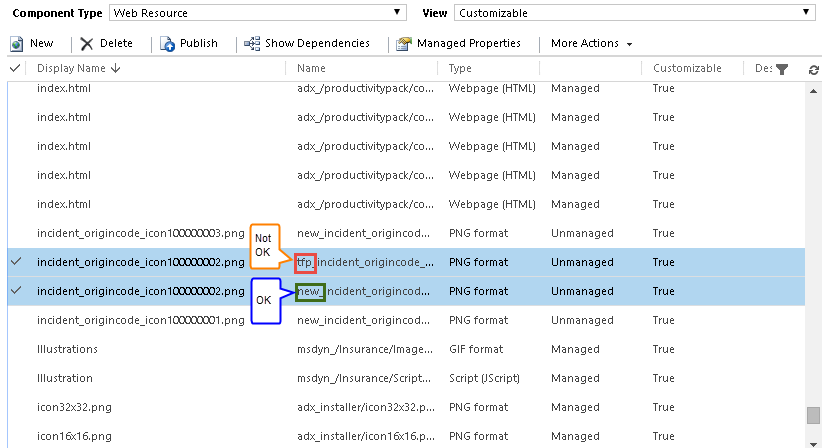
Well, now I want to have a new Origin of Case, I add new Type: from WhatsApp
And thanks for my friend, @RajYRaman, because I have an idea that it is possible to add New Case Origin with the beautiful logo as the icon after I read his tweet :).
Please refer to this post:
to get detail how to add new Case Origin and Add the icon as well.
So..Now what….I don’t have time to create new Apps in Android nor integration tool or Web Service to connect them…Okay, actually, they’ve already had their methods of friendship, yes, this is Email…
Then, I learned how the ‘Email Conversation’ feature in WhatsApp works and with what kind of format. And it is actually has structured format for Subject and Body and also the Attachment.
After that, I create a workflow to update the origin to WhatsApp with certain rules:

and Update the Origin to WhatsApp

*I just use the default format of WhatsApp email and simple rules for my demo, if your client has complicated SOP, then you should write your own plugin to convert to what they expected.
*You also can have dedicated queue for WhatsApp to create a separated email, for example:
cs-whastapp@example.com
cs-whastapp@example.com
Then…it is the time to check out and test the result.
I am playing role as Customer, I send message through WhatsApp to my Agent.
And now…
I am the Agent, I can send the Conversation through email.

I also can send the Picture as well.

I send the email with default format and nothing to change.

And Send it…..
And I log in to CRM..And I get the Case:


The conversation is stored in the .txt file

And of course, you can get the image as well, it can be broken car or new car for new application.

And the Voice Recording File as well.

SO…the User can hear the message and do the next action or escalation.
Yes, the customer can send the images of their broken car or new car for new insurance application and say message to the agent as well.
*If you need more complicated scenario, you might need a plugin to convert your own rules to the case.
For example, this case need to tie to the correct customer, then you can use the title:
WhatsApp Chat with +6012…
You can use the number to indicate the customer number and get the Customer Id using custom Plugin
And if you want to convert the .txt to another format, you also need a plugin to do it, this is the prototype to convert WhatsApp Message to a New Case in CRM 2011 by utilizing WhatsApp and CRM 2013.
Hope this helps!
Thanks.