In
my previous post, I was talking about how to solve the unresolved lookup reference between primary entity and child entity which I Put Customer and Case as the entities.
Now, what if I want to import them at once.
A Case reference to a Contact that Parent Company is an Account, which is Primary Contact is the Contact itself.
So it is a chicken and egg circuit, circle round and always in the loop.
Now, prepare your data map
*You can get your simple sample data map by importing to CRM and make sure you map all fields correctly and then save and download your newly create data map
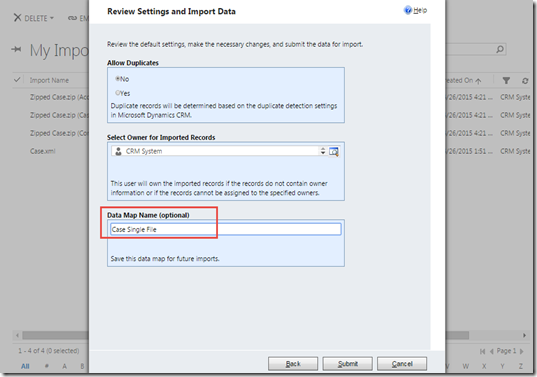
#0 Prepare the Source File
You can prepare the source file first then you can try to import to CRM to help you to create the Data Map and do mapping from your source to the CRM Target Entity and Attribute.

#1 Create New Custom Data Map or Use the Existing One and Download It
*As mentioned before you can use the existing data map and modify it.
If you noticed, you can learn how to create new data map from the ‘For Generic Contact and Account Data’
http://blogs.msdn.com/b/crm/archive/2010/11/04/importing-two-or-more-entities-from-a-single-file.aspx
And here our objective is to import 3 entities so that we need to create new Data Map.
#2 Edit the Data Map XML
Here is the XML of the data map:
<Map Name="Case Single File with Account and Contact Reference" Source="Import">
  <Description>Data map created automatically using the map settings specified during an import.</Description>
  <EntitiesPerFile>Multiple</EntitiesPerFile>
  <EntityMaps>
    <EntityMap TargetEntityName="incident" SourceEntityName="Case" Dedupe="Ignore" ProcessCode="Process">
      <AttributeMaps>
        <AttributeMap>
          <SourceAttributeName>Case Title</SourceAttributeName>
          <TargetAttributeName>title</TargetAttributeName>
          <ProcessCode>Process</ProcessCode>
        </AttributeMap>
        <AttributeMap>
          <SourceAttributeName>Customer</SourceAttributeName>
          <TargetAttributeName>customerid</TargetAttributeName>
          <ProcessCode>Process</ProcessCode>
          <LookupMaps>
            <LookupMap>
              <LookupType>System</LookupType>
              <LookupEntityName>account</LookupEntityName>
              <LookupAttributeName>name</LookupAttributeName>
              <ProcessCode>Process</ProcessCode>
            </LookupMap>
            <LookupMap>
              <LookupType>System</LookupType>
              <LookupEntityName>account</LookupEntityName>
              <LookupAttributeName>accountid</LookupAttributeName>
              <ProcessCode>Process</ProcessCode>
            </LookupMap>
            <LookupMap>
              <LookupType>System</LookupType>
              <LookupEntityName>contact</LookupEntityName>
              <LookupAttributeName>contactid</LookupAttributeName>
              <ProcessCode>Process</ProcessCode>
            </LookupMap>
            <LookupMap>
              <LookupType>System</LookupType>
              <LookupEntityName>contact</LookupEntityName>
              <LookupAttributeName>fullname</LookupAttributeName>
              <ProcessCode>Process</ProcessCode>
            </LookupMap>
          </LookupMaps>
        </AttributeMap>
      </AttributeMaps>
    </EntityMap>
    <EntityMap TargetEntityName="account" SourceEntityName="Account" Dedupe="Eliminate" ProcessCode="Process">
      <AttributeMaps>
        <AttributeMap>
          <SourceAttributeName>Account</SourceAttributeName>
          <TargetAttributeName>name</TargetAttributeName>
          <ProcessCode>Process</ProcessCode>
        </AttributeMap>
        <AttributeMap>
          <SourceAttributeName>Contact</SourceAttributeName>
          <TargetAttributeName>primarycontactid</TargetAttributeName>
          <ProcessCode>Process</ProcessCode>
          <LookupMaps>
            <LookupMap>
              <LookupType>System</LookupType>
              <LookupEntityName>contact</LookupEntityName>
              <LookupAttributeName>fullname</LookupAttributeName>
              <ProcessCode>Process</ProcessCode>
            </LookupMap>
            <LookupMap>
              <LookupType>Source</LookupType>
              <LookupEntityName>Contact</LookupEntityName>
              <LookupAttributeName>Contact</LookupAttributeName>
              <ProcessCode>Process</ProcessCode>
            </LookupMap>
          </LookupMaps>
        </AttributeMap>
      </AttributeMaps>
    </EntityMap>
    <EntityMap TargetEntityName="contact" SourceEntityName="Contact" Dedupe="Eliminate" ProcessCode="Process">
      <AttributeMaps>
        <AttributeMap>
          <SourceAttributeName>Contact</SourceAttributeName>
          <TargetAttributeName>lastname</TargetAttributeName>
          <ProcessCode>Process</ProcessCode>
        </AttributeMap>
        <AttributeMap>
          <SourceAttributeName>Account</SourceAttributeName>
          <TargetAttributeName>parentcustomerid</TargetAttributeName>
          <ProcessCode>Process</ProcessCode>
          <LookupMaps>
            <LookupMap>
              <LookupType>System</LookupType>
              <LookupEntityName>account</LookupEntityName>
              <LookupAttributeName>name</LookupAttributeName>
              <ProcessCode>Process</ProcessCode>
            </LookupMap>
            <LookupMap>
              <LookupType>Source</LookupType>
              <LookupEntityName>Account</LookupEntityName>
              <LookupAttributeName>Account</LookupAttributeName>
              <ProcessCode>Process</ProcessCode>
            </LookupMap>
          </LookupMaps>
        </AttributeMap>
      </AttributeMaps>
    </EntityMap>
  </EntityMaps>
</Map>
*Which i will explain each node..
The most important is this XML Node:

This will indicate, eventhough it is in single file, you want to split them into different entities.
Now, for making it clearer, I try to hide the detail thing first and put the high level perspective here:

Basically, we have 4 important components
Map Source Node
-> This node is important because this will become the unique identifier for naming the Data Map
Description
-> Not important but you gonna need it to make it clearer
Entities Per File
-> Single or Multiple?
-> Very important to indicate whether you want to import to split or one entity only
Entity Maps
-> Very Important
-> You need this for mapping, the very fundamental thing
-> Can have multiple <EntityMap/> node that the number will determine how many multiple entities you want to import to
Entity Map
Now, here is your mapping for each entity:
Case
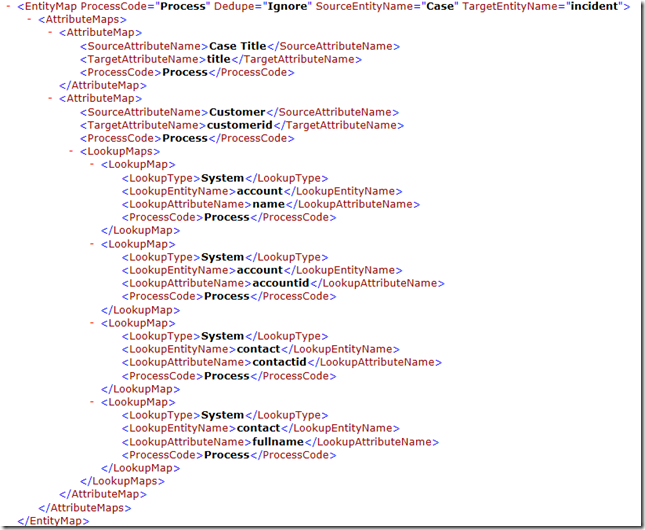
I have Case Title + Customer fields as Source and Target.
While for Case Title it is very straight-forward because it is a Text field, while for Customer field, little bit difficult because it is a lookup field and not only to single entity with single field as reference.
Account

I will have Source field: Account and Contact in my source files which i want to link them together.
I want to create new Account with Primary Contact from my Contact field and vice versa for Contact below
Contact
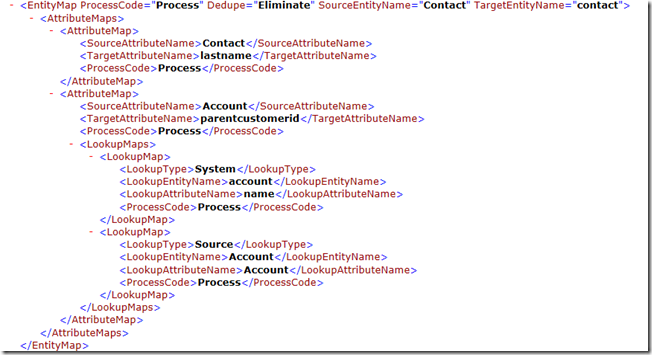
I need to make sure that the Contact will be linked to the Account as Company.
*You need to make sure that the Source and Target are correct, but CRM would always check it once you try to import the Data Map
#3 Import the Data Map
Now just import it to the Data Map
Microsoft Dynamics CRM –> Settings –> Data Management –> Data Maps

And then click
Import
Then the system will validate it.
#4 Back to the Source Files and Fill the Data
You can back to your file again to do re-checking before importing (even though you can delete it later)

So example here, I expect I will create new Case for row 5 and 6 with new Customer (Account/Contact that link each other).
I expect the system will create new Case with Title =
Question about new Membership, with Customer =
Aileen Gusni,
To make it happened, at first, the system need to create
Aileen Gusni as Contact first, but
Aileen Gusni also needs
Jakarta Fluid Tech as her Company name.
So, CRM will also create
Jakarta Fluid Tech as Account with Primary Contact =
Aileen Gusni and Vice Versa,
Jakarta Fluid Tech as
Aileen Gusni’s Company name. While the newly created Case will be linked to
Aileen Gusni as the customer.
And so on..Same for other Cases, Accounts, and Contacts.
#5 Import To CRM
Import to CRM as usual, but remember to
Use our Data Map
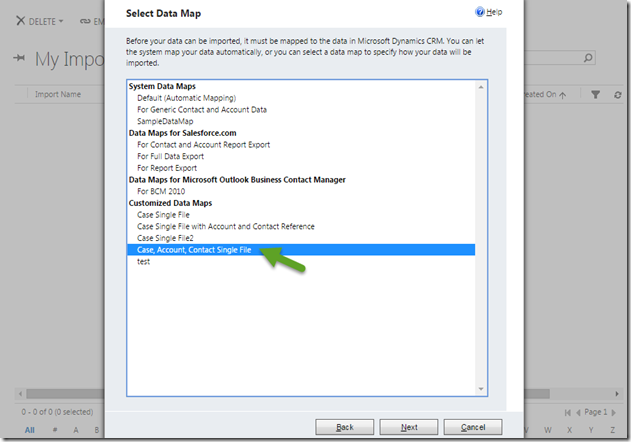
You can see the Mapping, you would notice that the system will auto-map into 3 entities as same as you defined in the data Map, especially the <EntityMaps> node. you can make it ‘Ignore’ or just leave it and Next

And here is the Review Mapping Summary, you will realize that the CRM auto-split the field into 3 different actions of Entity import as pre-defined Entities in your Data Map.

Result
After the Import was completed, I go to the Case and I find this!
Case with Customer (Contact) Detail

As per our expectation.
Case Title and Customer are correct, while we know that
Aileen Gusni is working for
Jakarta Fluid Tech company.
Now, let’s go to the Company itself.
Company/Account Detail

Yes, as we can see the Primary Contact is beautifully set to the correct name.
Same as well with the other Account and Contact: Troy Co. and Adam Hings

Conclusion
Now, we understand that using the Data Map, you can do bulk import across multiple entities and multiple attributes, not only limited to one entity as well. Then you can also solve the big problem the ‘which one is the first’ question.
To make new data map, need to learn the XML Schema first, but never mind CRM will do checking for you.
I’d recommend to you to use the XML Editor or Visual Studio XML Editor, you can also use Notepad or Notepad ++ if you wish

.
In this post, I explained about how powerful data map can be your helper to do bulk import without you need to make effort in splitting them into 3 different files and import them in correct sequence, because CRM has capability to know its sequences. I believe that this is not only limited to 3 entities.
Hope this helps!
Thanks.


