Hi in my previous post, I have mentioned about tinyMCE, but those are solutions without plugin, while sometimes you need it and my project also needs it so I just want to share it out.
Here you can download the managed solution (I chose managed because in case you don’t need it you can just remove it at all)
CRM 2013 TinyMCE Solution
CRM 2011 TinyMCE Solution
Hope this helps!
Thanks.
Showing posts with label Supporting and Development Tools/Software. Show all posts
Showing posts with label Supporting and Development Tools/Software. Show all posts
Sunday, 9 August 2015


Wednesday, 5 August 2015
Dynamics CRM Rich Text HTML Editor with TinyMCE Solution
Introduction
We all know that CRM records except Email Template or Email cannot have Rich Text HTML Editor using CRM Out of The Box Feature. In some situations, we might need this requirement, for example, when we need to supply data to CMS System that need fancy color, fancy formatting, superscript, and subscript as well, we can’t just supply them the plain text only without styling and HTML formatting.
Solution
So, this is one of our requirement in the project, so, together with my geek colleague, JVS Segador trying to make it happens using tinyMCE.
There are 3 choices we can use:
1. Use HTML Web Resources
Then we place it in to the CRM Form
2. Use custom page like ASPX hosted somewhere and then put as iFrame
3. Convert text field in CRM to Rich Text Editor with some ‘hack’ and ‘tweak’
For those we still need the TinyMCE libraries, so the purpose of my blog post now is to help you using the TinyMCE by providing you the CRM solutions I have compiled.
Steps & Download Link
1. You just need to import it to your CRM and choose 1 of 3 choices by referencing its libraries.
Finally, you can download here:
TinyMCE Solution for CRM 2013
*This example is for CRM 2015 Online (with Online Updates 1), so should work for now.
*This example is for CRM 2015 Online (with Online Updates 1), so should work for now.
2. Create a HTML, a new Web Resource, then You can refer to the library you have installed into your CRM Solution, for example:

3. Then you need a javascript to get the content and to grab it and save it to the expected field value.
To grab the value you can use this:
var xContent = tinyMCE.get('textareaID').getContent();
//or
var aContent = tinyMCE.activeEditor.getContent();
*Note: In the next post I will provide the full HTML Code as solution
4. Put the HTML to the CRM Form
5. For adding new Plugin or new fancy functionalities you can add more plugin libraries that TinyMCE provides to you all.
Result
And here is the result:

Thanks to TinyMCE Team! Good night here
Tuesday, 14 April 2015
How to Show the Missing ‘Report Data’ in SSRS Development
A quick post, just in case you are creating SSRS or continue from anyone project and you found that you lost the ‘Report Data’ properties box, so here I am, facing the same issue.


Hope this can save your day.
Thanks!

Solution
A simple solution: Just press: CTRL + ALT + DResult

Hope this can save your day.
Thanks!
Friday, 3 April 2015
Skyvia: Backup Your Data via The Sky
In my previous post, I was talking about Skyvia as my introduction part. As we know Skyvia is a product to help the data integration and backup in the cloud, now let’s talk first about the backup.
Since my blog is particularly purposed to Dynamics CRM-all about, so here I want to research its capability in term of CRM Backup and write every single step here, and yes, I try it on CRM Online! (As we know it is not possible for us to do backup CRM Online by ourselves without the favor from Microsoft Team).
Now, I have been logged in here:

2. Create a New Connection
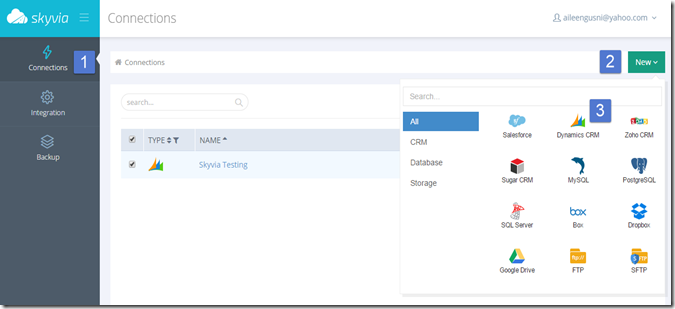

Select the Dynamics CRM (for those who are not CRM Users, don’t worry, there are plenty other options)
3. Fill up The Connection Configuration Form and Test Connection, then Save it.

4. Go to Backup

5. Create New Backup Package, Select Connection

6. Select your Object to Backup
Well, to backup, you need to choose what Object you want to Backup, so it is Object-Based Backup.
This is very useful if you want to backup partial data that is very important.
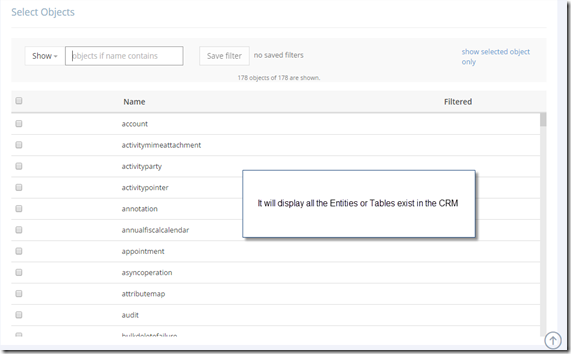
7. Now, I want to Backup Account and Contact

8.Not only that, when you click the ‘edit’ you can perform more.

You can filter to not backup all Fields and can Filter by Condition.
And you can perform grouping: And, Or, and Xor (maybe more powerful than the Advance Find )
)

But, now I don’t want to play around with this, I just want to backup all.
9. Setup Schedule
As usual Database Backup Task, we can set a schedule or just make it as one time only.


I make it as One-Time only in my research.

10. Now Back to the Top and Save it.

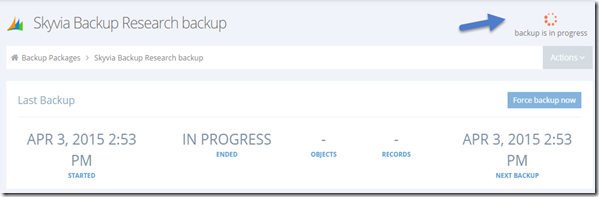
11. Backup is in Progress…
You can see the status here and you can also Force Backup Now if you already schedule it later but you want to have it immediately
Scrolling down, later you can se the Records and also the History of the Backup

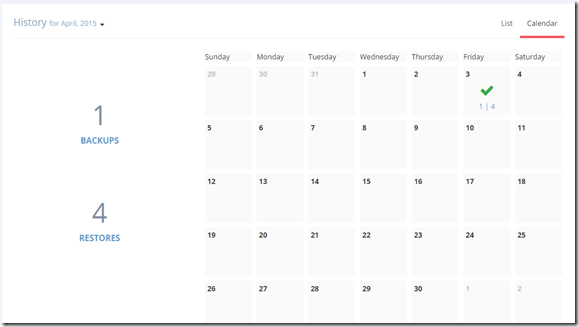
*History in Calendar View

12. You can Create Multiple Backup Packages

Just wait, it’s about 30 minutes waiting
Now I can get the Report

That’s all the steps to backup your database.
Now, imagine in the CRM if you accidently delete or update a record, can you undo it?
You can recover it, but you need the Audit history and recover it programmatically, which is for end users it is not recommended.

As we can see, there is a confirmation box and also warning box as caveats to us to re-think again before we delete any record, because WE CAN”T UNDO THIS ACTION.
And Again…Another box comes up.

Now back to the Skyvia backup and then select the backup that we have performed before.
Search the data

Now, back to the left side, scroll left horizontally and then tick the selected record

It will open the ‘Restore’ account
Now, just click the ‘Insert Records’
Restore is in progress….


Restored Result

You can get the report, 1 record has been Restored, now let’s back to CRM.
And we search the record..

The record is successfully restored! Saved the day.
Now, back to CRM and the users suddenly change the City and State to incorrect value, Sydney and DKI Jakarta

Now, I want to undo the changes
I go back to Skyvia and then perform the Update

Undo Result

Then back to CRM

The Address is back to its original value!
I want to delete Brian Burke

We know we can delete it from CRM UI, but let’s try to delete from Skyvia.

Now no more Brian Burke in CRM
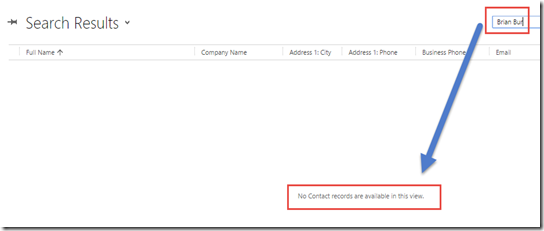
You can later recover it back.

- This is very useful for restoring data, undo changes, and delete just from the snapshot as long as you have the backup (of course)
- All the actions are performed in very simple steps with fancy UI
- Definitely No need to have programmatically knowledge
- No effort to create Integration environment, because all-in-one in Cloud
- Every single actions are stored and you can see in the History
As usual, there is no perfect product, so it still has Limitations
Limitations:
- Simple logic only, you can just search the record by keyword, so far no complex logic
- Restoring is object by object, can be positive for particular data (no hassle), but negative for big data
- The restored records concept is using Insert, so it will use the New GUID, so that you will lose the first Guid, lose the relationship as well
- Same concept with previous one, the ‘created on’ field will have today value, not the original ‘created on’ field
Thanks and stay tune in the next post!
Since my blog is particularly purposed to Dynamics CRM-all about, so here I want to research its capability in term of CRM Backup and write every single step here, and yes, I try it on CRM Online! (As we know it is not possible for us to do backup CRM Online by ourselves without the favor from Microsoft Team).
Steps
1. Sign up and LoginNow, I have been logged in here:

2. Create a New Connection


Select the Dynamics CRM (for those who are not CRM Users, don’t worry, there are plenty other options)
3. Fill up The Connection Configuration Form and Test Connection, then Save it.

4. Go to Backup

5. Create New Backup Package, Select Connection

6. Select your Object to Backup
Well, to backup, you need to choose what Object you want to Backup, so it is Object-Based Backup.
This is very useful if you want to backup partial data that is very important.

7. Now, I want to Backup Account and Contact

8.Not only that, when you click the ‘edit’ you can perform more.

You can filter to not backup all Fields and can Filter by Condition.
And you can perform grouping: And, Or, and Xor (maybe more powerful than the Advance Find
)
But, now I don’t want to play around with this, I just want to backup all.
9. Setup Schedule
As usual Database Backup Task, we can set a schedule or just make it as one time only.


I make it as One-Time only in my research.

10. Now Back to the Top and Save it.

11. Backup is in Progress…
You can see the status here and you can also Force Backup Now if you already schedule it later but you want to have it immediately

Scrolling down, later you can se the Records and also the History of the Backup

*History in Calendar View

12. You can Create Multiple Backup Packages

Just wait, it’s about 30 minutes waiting
Now I can get the Report

That’s all the steps to backup your database.
Backup Method
Where is it stored?
According to the Engineer, Jacob MartinBacked up data is stored in a secure Azure Geo-redundant storage (GRS), and these data are always available for viewing and restoring.
Can we Download the Data?
Skyvia allows downloading backed up data as CSV files. It does not allow downloading them as a database. However, you can view all the backed up data in the browser, filter and search them, and restore them in a couple of clicks.
What’s Next
The question now is what’s next? Is that just a backup? No, actually you can perform Update, Insert, and Delete from the selected BackupSkyvia Backup Features (Update, Insert, Delete)
As mentioned before, this is not only just backup and that’s all. No. It is like a snapshot, imagine you are running Virtual Machine, then something happened, it gets crashed, you can just recover it all.Now, imagine in the CRM if you accidently delete or update a record, can you undo it?
You can recover it, but you need the Audit history and recover it programmatically, which is for end users it is not recommended.
Skyvia as The Snapshot-er
Recover the Deleted Records
Back to CRM and I delete one of the Account record
As we can see, there is a confirmation box and also warning box as caveats to us to re-think again before we delete any record, because WE CAN”T UNDO THIS ACTION.
And Again…Another box comes up.

Now back to the Skyvia backup and then select the backup that we have performed before.
Search the data

Now, back to the left side, scroll left horizontally and then tick the selected record

It will open the ‘Restore’ account
Now, just click the ‘Insert Records’
Restore is in progress….


Restored Result

You can get the report, 1 record has been Restored, now let’s back to CRM.
And we search the record..

The record is successfully restored! Saved the day.
Undo the Changes
We learned how this Skyvia helps us to re-insert the deleted record.Now, back to CRM and the users suddenly change the City and State to incorrect value, Sydney and DKI Jakarta

Now, I want to undo the changes
I go back to Skyvia and then perform the Update

Undo Result

Then back to CRM

The Address is back to its original value!
Delete Record
Now we want to delete the record in CRM easily, you can just delete from its snapshot.I want to delete Brian Burke

We know we can delete it from CRM UI, but let’s try to delete from Skyvia.

Now no more Brian Burke in CRM

You can later recover it back.
History of Actions


Overall
Strengths:- This is very useful for restoring data, undo changes, and delete just from the snapshot as long as you have the backup (of course)
- All the actions are performed in very simple steps with fancy UI
- Definitely No need to have programmatically knowledge
- No effort to create Integration environment, because all-in-one in Cloud
- Every single actions are stored and you can see in the History
As usual, there is no perfect product, so it still has Limitations
Limitations:
- Simple logic only, you can just search the record by keyword, so far no complex logic
- Restoring is object by object, can be positive for particular data (no hassle), but negative for big data
- The restored records concept is using Insert, so it will use the New GUID, so that you will lose the first Guid, lose the relationship as well
- Same concept with previous one, the ‘created on’ field will have today value, not the original ‘created on’ field
Thanks and stay tune in the next post!
Skyvia Review: Riding Your Data Via The Sky
Nowadays, Cloud is our new trend, even, now, we cannot live without dealing with the Internet and ‘the Sky’. Even our beloved CRM Product, SharePoint, and other technologies are hosted in the Cloud, helping us to reduce our pain in taking care our Infrastructure investment. Now, the problem is we need to do backup and integration, imagine in CRM Online, we cannot just perform backup and restore like what we always do in our onPremise SQL Database. In term of Integration, we already knew some tools, such as OOB CRM Export Import Wizard, SSIS + its Connector, Scribe, etc.
You have entrust your Data in the cloud, now do you ever imagine that you want to have a solution for backup and integration also in the cloud?
To avoid any other Integration investment, luckily, there is Devart who developed a sky tool, with the name ‘Skyvia’ and one of the man behind this tool introduced it to me personally, so now I would like to give it a try and write the review of their product. This product can integrate various sources to various targets, not only CRM to CRM and it is supported by its attractive User Interface.
For my first impression, I am impressed by its User Interface, it is simple, flat, but fancy and colorful, and it is easy.
What is Skyvia?

Well, its slogan can tell what it does and what it is. It is new era of ETL Tool, all in the cloud!
Integrate, back up, access, and manage your cloud data
with our all-in-one cloud service!
What are Skyvia Features?

Yes, it is not only ETL Tool.
What are The Supported Connectors?

Skyvia supports several Worldwide CRM Products, Database, Online Storage, and also FTP.
Imagine, it’s all can be connected together.
How to Get Started?
As per mentioned before, it is a sky-based solution, it does need any other tool investment, just register here:https://app.skyvia.com/register
And start your Sky Journey via Skyvia
How Much????
Well, for all of those features, I should have told you in front, currently, IT IS FREE…Yes, it is….At least until today it is free.You can start now while it’s free and then visit their website for pricing changes HERE
Overall
It is very easy-to-use tool to perform backup and integration, for more complicated logic you might still need SSIS or Scribe, however, considering its price and its stand-alone software in the cloud, it is powerful to integrate data and also help you to backup your Online Data, while you don’t need to call Microsoft or Other Product Team just to backup your pieces of very important Data, want to prove it? Just Sign Up.
In the next post I will write about Skyvia Functionality, not just Introduction as wrote in this post.
Thanks.
Sunday, 23 November 2014
XRM Toolbox - Solution History: A Tool to Help You to Recall What Have Been Imported to Your Organization
Hello everyone..
Ever thought to Audit what happened in your CRM Customization?
What have I and my colleague imported into our Organization?
And also to track not only the solution imported, but its components time by time?
Well, I have very interesting tool for you to grant your wishes.
I know this tool when my friend, Raj told me that he has done a new plugin for XRM Toolbox and I check the tool.
https://crmbusiness.wordpress.com/2014/11/17/crm-2013-tool-review-solution-history-for-crm-2013/
And I am going to create my own essay here.
https://solutionhistory.codeplex.com/

If you don’t have the XRM Toolbox, then it is the best time for you to download.
Here: http://xrmtoolbox.codeplex.com/
(Even though I have no idea why a CRM Consultant has never downloaded this tool , assuming it is a good tool)
Then, get connected to your organization:
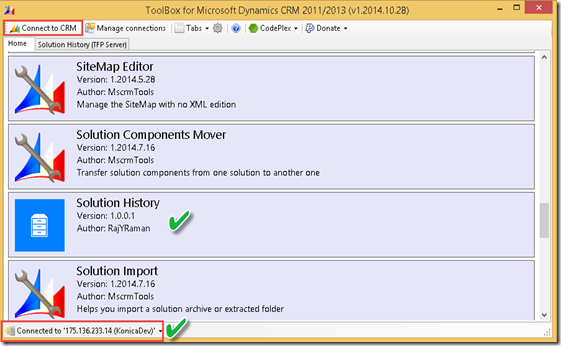
And start the “Solution History”
For example, in my environment I have bunch of solution, and inside of each solution, I have bunch of components that it can be overwritten by any developer with access.
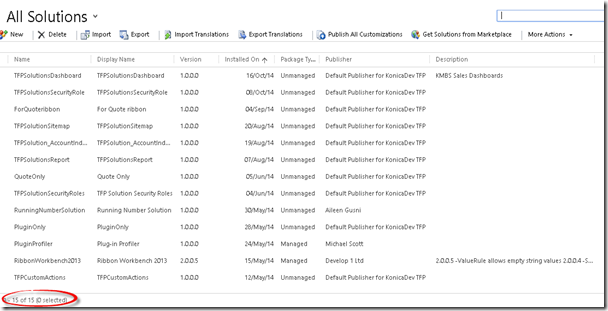
It can cause headache for me to recall every single customization that I have done and imported to the Organization.
And luckily, with this tool I can get the historical list of the imported customization.
Here we go..
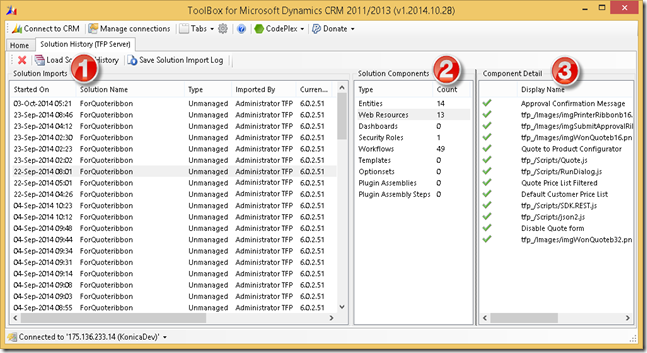
Overall, it has 3 components:
1. Solution Import
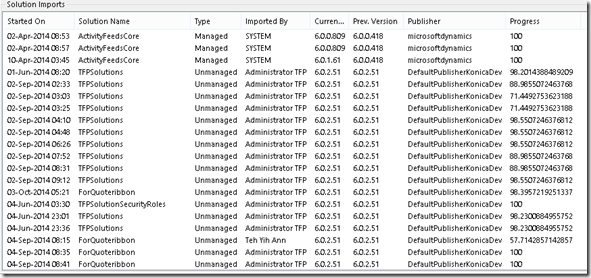
--> This is the list of imported solution time by time, you can see the date, solution name, solution type (Managed/Unmanaged), the importer, version (current and previous), publisher, and progress, which you can also sort the data.
2. Solution Components
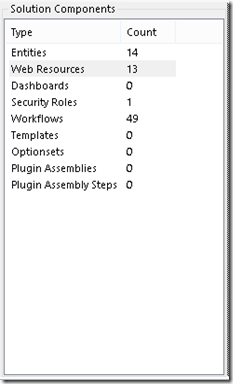
--> This is detail of the solution components you selected in tab #1, here you can see how many entities, web resources, dashboards, and so on you have included to be imported in this import job.
3. Component Detail

--> This number 3 is used to show more detail of the component you’ve selected in the number #2, I choose Web Resources, so it shows me the component with type = Web Resources, it can be image, script, etc.

If you know the technical in CRM, the concept is this Tool is all simple based on SDK (This tool uses importjob entity to get list of solution imports and RetrieveFormattedImportJobResultsRequest) combining with effort and patience plus creativity to build the tool that is useful for every one. Thumbs up for the author.
Hope you enjoy reading this post and using the tool!
Thank you.
Ever thought to Audit what happened in your CRM Customization?
What have I and my colleague imported into our Organization?
And also to track not only the solution imported, but its components time by time?
Well, I have very interesting tool for you to grant your wishes.
I know this tool when my friend, Raj told me that he has done a new plugin for XRM Toolbox and I check the tool.
Any Additional Introduction?
If you want to see some review, Ben Hosking has provided excellent information:https://crmbusiness.wordpress.com/2014/11/17/crm-2013-tool-review-solution-history-for-crm-2013/
And I am going to create my own essay here.
How to Get It?
First of all, we can download this tool here:https://solutionhistory.codeplex.com/
How to Start?
As mentioned by the author, since it is one of the XRM Toolbox Plugin, you have to copy the .dll file you’ve downloaded in previous step into the executable bin folder of the XRM Toolbox.
If you don’t have the XRM Toolbox, then it is the best time for you to download.
Here: http://xrmtoolbox.codeplex.com/
(Even though I have no idea why a CRM Consultant has never downloaded this tool
, assuming it is a good tool)Then, get connected to your organization:

And start the “Solution History”
How is the tool becoming so important?
Are you realizing that in medium-large scale project, it is not easy to maintain all customization and component you have done in CRM.For example, in my environment I have bunch of solution, and inside of each solution, I have bunch of components that it can be overwritten by any developer with access.

It can cause headache for me to recall every single customization that I have done and imported to the Organization.
And luckily, with this tool I can get the historical list of the imported customization.
Here we go..

Overall, it has 3 components:
1. Solution Import

--> This is the list of imported solution time by time, you can see the date, solution name, solution type (Managed/Unmanaged), the importer, version (current and previous), publisher, and progress, which you can also sort the data.
2. Solution Components

--> This is detail of the solution components you selected in tab #1, here you can see how many entities, web resources, dashboards, and so on you have included to be imported in this import job.
3. Component Detail

--> This number 3 is used to show more detail of the component you’ve selected in the number #2, I choose Web Resources, so it shows me the component with type = Web Resources, it can be image, script, etc.
Can I save the Log?
Yes, of course you can.

If you know the technical in CRM, the concept is this Tool is all simple based on SDK (This tool uses importjob entity to get list of solution imports and RetrieveFormattedImportJobResultsRequest) combining with effort and patience plus creativity to build the tool that is useful for every one. Thumbs up for the author.
Hope you enjoy reading this post and using the tool!
Thank you.
Subscribe to:
Posts (Atom)